Resume Export (PDF) Design & Export
This guide walks you through how to organize and download your completed resume as a print-ready PDF. This document focuses specifically on the Step 03 · Design & Export screen.
What You Can Do on This Screen
In the Professional Skin Selection screen (Step 03), you can select a layout, refine your design, adjust print options, and download your final PDF.
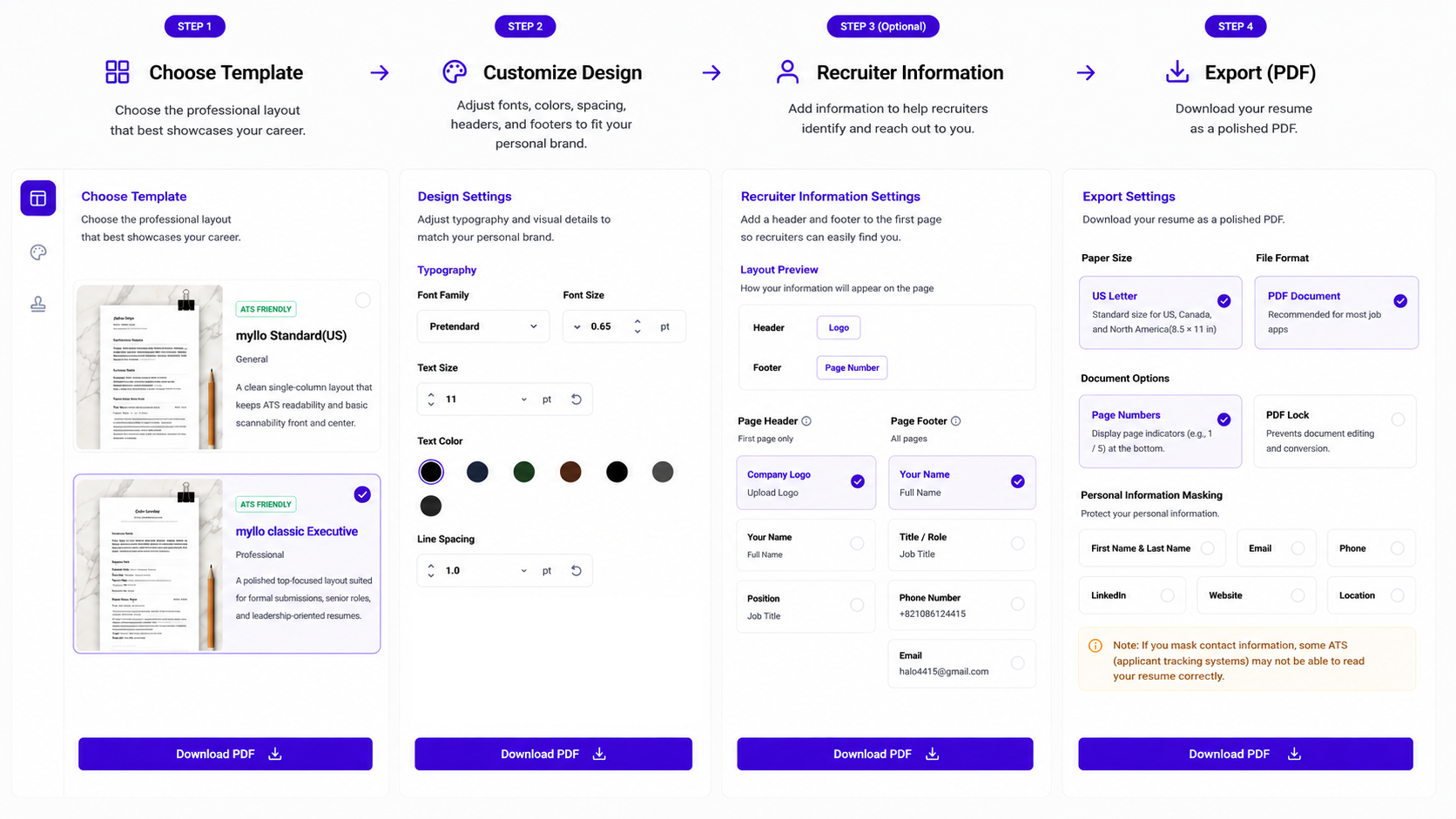
Skin Selection: Change the overall layout style, aesthetic, and information hierarchy.
Advanced Design Settings: Fine-tune specific typographical and print styling details such as fonts, colors, spacing, and density.
My Information: Conduct a final check of the personal details and contact information that will appear on your printed document.
Print & Export Settings: Configure essential export properties including paper size, personal information masking, PDF locking, and page numbering.
Recruiter Information: Add specific company names, logos, or contact details directly to your PDF for targeted submissions if needed.
Live Preview: Review a real-time rendering of your document to see exactly how it will look as a final PDF before downloading.
Design and Download Steps
Skin Selection : Begin by choosing a skin to set the overall structural and visual direction of your resume.
Advanced Design Settings : Fine-tune the typography, color scheme, spacing, and content density to fit your needs.
Live Preview : Keep an eye on the real-time preview to ensure sections do not look overly crowded and that margins remain visually balanced.
Print Settings : Configure the paper size, privacy masking, page numbers, and PDF locking features based on how you plan to submit the file.
Recruiter Settings : Enter external recruiter or hiring company details only if your submission context requires them.
PDF Download : Once all configurations are set to your satisfaction, initiate the final download.
Return to Editor : If you spot any typos or need to rewrite sentences, simply click the Back to Content Editor button to modify the text itself.
Detailed Settings Guide
Advanced Design Settings
Font Settings : Choose a font family that best suits your target industry and personal brand. However, please note that the font for the profile card at the very top of your resume is locked to Pretendard to maintain its polished aesthetic, guarantee readability, and ensure consistent layout rendering.
Color Schemes : We recommend using clean, professional color palettes that are easy on the eyes. Make sure the text color has a strong enough contrast against the background to remain legible when printed in both color and grayscale.
Spacing & Density : If you have a large amount of text, adjust the line spacing and margin density so the document does not look cluttered. This is an incredibly useful setting when trying to fit your content perfectly within a set page limit.
Recruiter Information
This is highly beneficial when you want to customize your resume for a specific headhunter or hiring manager. It allows you to display their company name, logo, and contact details directly on the PDF to show alignment. We recommend disabling this feature when distributing your resume broadly for open recruitment rounds.
Skin Settings This section determines the overall layout and visual impression of your resume. Because the layout dictates the flow of your information, it is highly recommended to select your skin first before adjusting advanced design details. Choose a skin that best matches your target application, whether you need a comprehensive, experience-focused layout or a clean, single-column ATS-friendly style.
Print & Export Settings
Paper Size : Select
A4when applying to companies in Korea, or chooseUS Letterwhen submitting your application to international companies or global hiring systems.Personal Info Masking : This feature replaces sensitive contact details with placeholders. It is incredibly useful when uploading a sample portfolio online or sharing your resume draft publicly for peer review.
PDF Locking : Enable this setting if you want to lock the file to prevent recipients from easily copying the text or editing the document content after submission.
Page Numbers : If your resume spans two or more pages, enabling page numbers adds a structured, professional finish to the footer of each page.
Final Checklist Before Downloading
Resume Layout Format : Did you verify that your chosen layout template (KR / US Layout) aligns correctly with your submission goals?
Content Accuracy : Is all of your resume information completely up to date? If you need to make any textual changes, please go back to Step 02 (Content Editor) to edit the text.
Layout Balance : Did you check that your font size and spacing settings do not cause awkward line breaks or push single lines over to an extra page?
Paper Size : Is your document size set to the correct standard for your target region? (A4 or US Letter)
Privacy Controls : Have you turned on the privacy masking feature if you are sharing this file in a public space?
Recruiter Details : Is the recruiter information turned off if you are submitting this as a general job application?