Registering a New Resume
When starting a new resume, you will choose a format and, if needed, import an existing file with AI to easily generate a draft. This guide walks you through the process step-by-step.
Step 01 Format Selection
When you launch the resume builder, your first step is to choose the overall structure and layout of your resume.

1. Select a Layout Format
Choose one of the two cards displayed on the screen:
English (US): Global standard format (ATS-optimized, single-column layout).
한국어 (KR): Korean standard format (includes domestic-standard sections such as Education, Work Experience, and Military Service).
2. Enter the Builder
Click on your preferred format, then click the Continue button to enter the editor.
Key Things to Remember
This step is strictly for choosing your resume's structural layout, not for uploading files.
The format you choose here will be used consistently for editing, saving, and exporting your final PDF.
Uploading an existing resume and running the AI analysis takes place on the next screen (inside the editor).
Step 02 Import & Analyze (Optional)
When you enter the editor for the first time, the Import & Analyze pop-up window will appear. (If you close it, you can reopen it anytime by clicking Import in the top menu.)
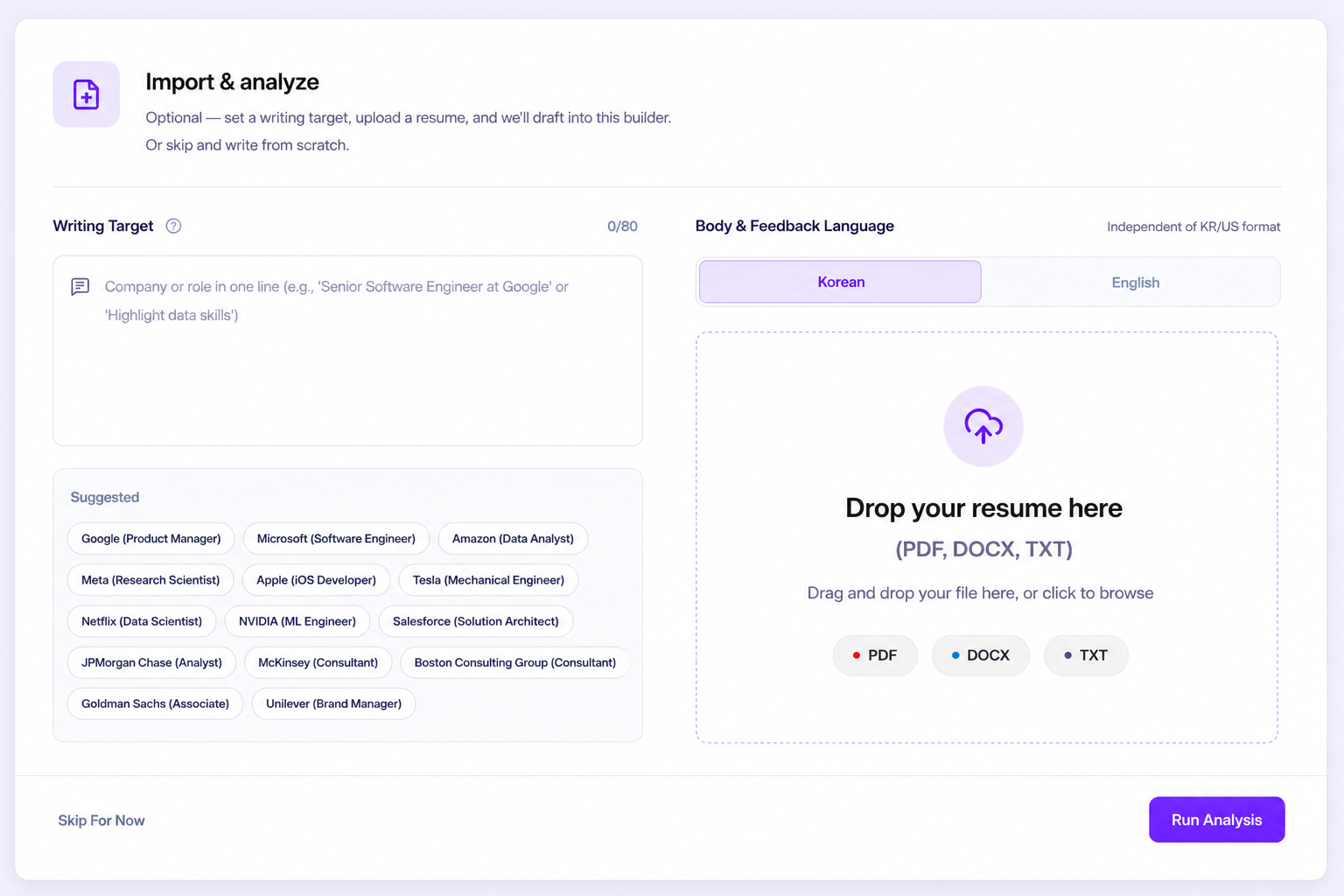
Step-by-Step Flow
1.Set Writing Target (Optional):Max 80 characters.
Enter a single line stating your target company and role. This guides the overall strategy and AI feedback direction. (e.g., Toss Senior Frontend Developer)
2.Configure Language Settings:Korean or English.
Choose the primary language you want to write your resume in and receive feedback on. This is independent of your chosen layout format. (e.g., you can choose the KR format layout but select English to write your content in English)
3.Upload Your Existing Resume:PDF, DOCX, TXT / Under 5MB.
Drag and drop your existing resume file into the upload area or click to browse.
4.Analyze or Skip:40 Credits or Free.
Analyze: The AI extracts text from your file and automatically populates the fields to create a structured draft. (Costs 40 credits)
Skip for Now: Skip the file upload and start writing from scratch on a blank canvas. (Free / 0 credits)
Language Configuration Use Cases
You can mix and match layouts and text languages depending on your target company. Use the table below as a guide:
Current Resume | Target Resume Layout | Language Setting | Final Result |
Korean | Korean (KR) | Korean | Draft populated in Korean using the KR layout template. |
English | English (US) | English | Draft populated in English using the US ATS layout template. |
English | Korean (KR) | English | English content populated directly into the KR layout template. |
English | Korean (KR) | Korean | Draft translated into Korean and populated into the KR layout template. |
Korean | English (US) | English | Draft translated into English and populated into the US ATS layout template. |
Tips & Warnings
Review the Auto-Generated Draft: While the AI does a great job of sorting your past experience into the correct sections, please check the draft carefully for minor typos, omissions, or mixed-language formatting before finalizing your submission.
Smart AI Feedback: Running the analysis does more than just fill in the blanks—it also generates tailored AI suggestions to help improve your resume's impact.
JD Analysis & Fit Predictor: If you want a detailed match rate analysis customized for a specific job posting, please do not use this import step. Instead, first create your resume, and then select the JD Analysis & Fit Predictor from the top Library menu within the resume viewer screen.
Troubleshooting & System Messages
If you encounter any of the following messages during the process, here is how to resolve them:
Scenario | Alert Message | How to Fix |
Missing File | Please upload a resume file first. | Click the dropzone or drag and drop a file before running the analysis. |
Text Extraction Failed | Failed to extract text from the file. | If you uploaded a scanned PDF (image-only), try uploading a text-selectable PDF or a DOCX file. |
Invalid Format | Supported file formats are PDF, DOCX, and TXT. | Convert files of other formats (such as .hwp or .png images) to supported types before uploading. |
File Too Large | Please upload a file under 5MB. | Compress your document or remove high-resolution embedded images, then try again. |
System Error | No analysis data found. Please try again. | This might be a temporary network issue. Refresh the page and try running the analysis again. |
Success | Draft applied successfully. Continue editing below. | Your resume fields have been successfully populated. Review the draft and begin editing! |
Summary
Choose Your Layout First (KR / US): This sets the structural backbone of your resume template.
Configure Import Settings: Define your target role, preferred writing language, and upload your file.
Decide Your Starting Path: Click Analyze (40 credits) to let AI jumpstart your draft, or click Skip for Now to build from scratch for free.