Editing & Saving Your Resume
This guide walks you through how to refine, organize, and save your content using either an AI-generated draft or a blank template.
What You Can Do on This Screen
In the Strategic Storytelling screen (Step 02), you can fill in your resume sections, receive targeted AI feedback, and adjust your layout in real time.
For New Resumes-Start editing immediately after closing the Import pop-up window or clicking Skip.
For Saved Resumes-Go directly to this screen by clicking the Edit button in My Library.
The Three Core Tabs
Switch between the tabs at the top of the editor to seamlessly manage your resume strategy, structure, and details.
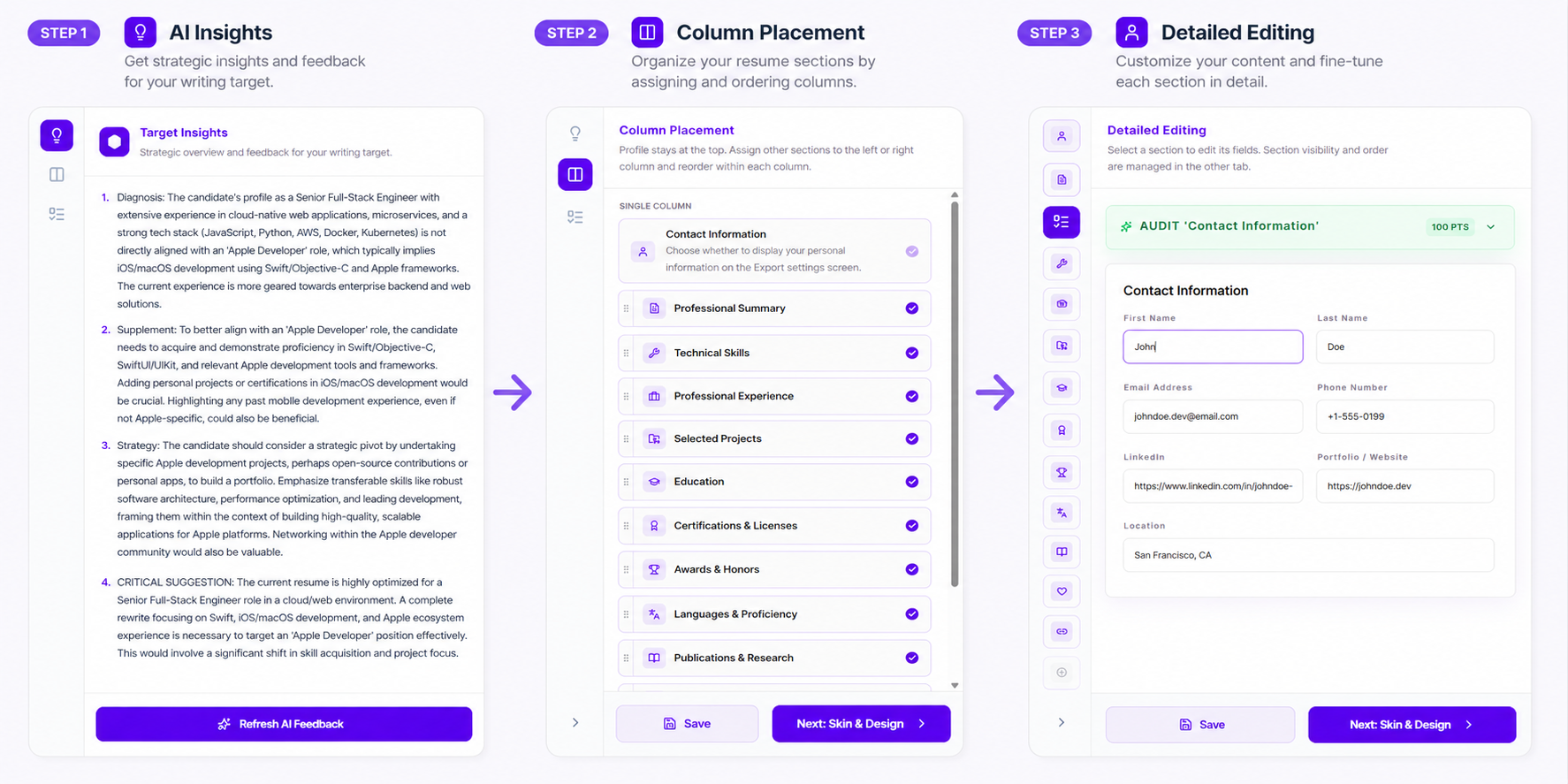
1. AI Analysis Tab
The AI drafts a strategic profile overview and provides targeted feedback tailored to your job search goals.
Target Configuration - Entering a specific target role and company helps the AI generate a highly precise and customized strategy.
AI Feedback & Refresh - It is best to generate or refresh feedback after you have filled in some of your basic work history and education details.
Credit Cost - 15 Credits
2. Section Layout Tab
Easily arrange the structure and order of your resume sections.
Fixed Top Section-The Contact Information and Profile sections remain locked at the very top of your resume.
Flexible Column Layouts-Choose from a single-column (full width) layout, a split layout with a narrow left column and wide right column, or a split layout with a wide left column and narrow right column.
Hide Unused Sections-You can easily hide any sections that you do not need to display at the moment.
3. Form Editor Tab
Directly input your detailed information, such as company names, job titles, employment dates, and specific achievements.
Section Visibility and Order-The visibility and sequence of each section are controlled by the settings you configure in the Section Layout tab.
AI Text Enhancer-Transform rough bullet points or quick notes into polished, professional business writing. A basic enhancement costs 2 credits, while an advanced enhancement that retrieves live web data about the company or job role costs 5 credits.
Save & Builder Actions
Use the live PDF preview at the center of your screen to see your changes in real time as you utilize the following controls.
Button | Function & Description |
Save | Saves your current progress securely to the database. |
Next | Saves your work and takes you to the styling, theme configuration, and final PDF export step. |
Import | Reopens the file upload window so you can import a different document and regenerate an AI draft. |
Final Review Recommended
The AI-generated drafts and feedback are designed to support your writing process as helpful references. We strongly recommend that you carefully review your resume to check for typos, consistency, and flow before submitting your application.